
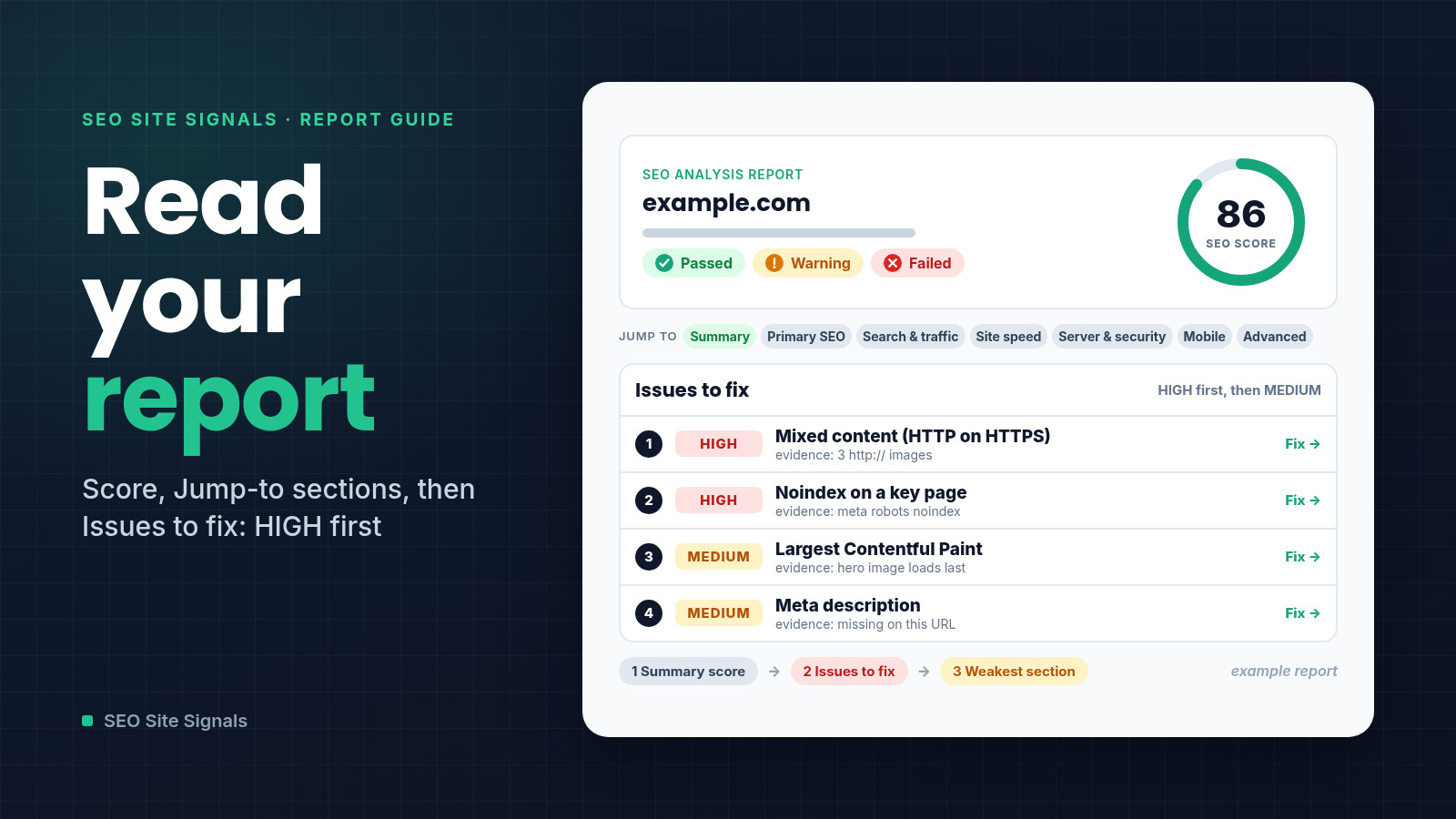
To read an SEO Site Signals report, start on your property’s dashboard. Confirm the Scan Engine finished, check What Changed, then use Top Recommended Actions as your shortlist. Open the full report and work Issues to fix, HIGH before MEDIUM. Read the evidence inside each finding card, fix the page, then open your weakest section score. Use the full report as your source of truth for issues, because it lists every check behind the score.
This walkthrough follows the signed-in dashboard. If you ran a free scan without an account, you land straight on the full report, so skip to the fourth step.
1. Where do you start? Site Health, Scan Engine, and What Changed
Open Dashboard and pick the property tab for the site you want to review. Three tiles tell you whether the latest scan can be trusted before you read any findings.
Site health
This tile shows Core Web Vitals-style lab rings (SEO, Performance, Accessibility, Best Practices) with a status pill. Use it for a quick read on the page, not a diagnosis.
Scan engine
Look for Scan complete, Website analysis at 100%, and the “Last full scan completed” time. If the scan is still running or the time is old, wait or launch a new scan before you act.
What Changed (since last scan)
This tile shows the current score against the previous scan, plus passed, warnings, and failing counts. A drop after a deploy tells you where to look first.
2. How should you use Top Recommended Actions?
Top Recommended Actions (labelled “Highest impact first”) is a short, numbered priority list from the latest scan. Each row names a check, such as HTML validity, keyword usage, or AI search visibility, along with a one-line reason. It is a shortlist, not the full backlog.
- Read the top three items and note the check names.
- Click View full report to see the evidence behind each one.
- Assign an owner (developer, content, or hosting).
3. What does AI Search Readiness actually tell you?
AI Search Readiness splits AI search into two separate questions. Each has its own pass or fail pill. A pass on one does not imply a pass on the other.
AI Crawler Access & llms.txt
Asks: can AI search crawlers reach your content, and do you publish an llms.txt file?
Fix lives in: robots.txt rules, firewall or CDN bot settings, and the llms.txt file.
AI Overview Citations
Asks: does Google’s AI Overview cite your site for the keywords you track?
Fix lives in: the content itself. You need pages that answer those queries well enough to be chosen as a source.
A common pattern is crawler access passing while citations fail. That means bots can read the site, but no tracked query is citing it yet. Google’s guidance on AI features says no special file or markup is required to appear in AI Overviews; normal Search eligibility and helpful content apply. So llms.txt is about access for other AI crawlers. It is not a switch that turns on Google citations.
4. How do you read the full report header, score, and Jump-to sections?
The full report opens with a header labelled SEO Analysis Report. It shows the URL, scan date, the number of signals checked, a one-line verdict, passed, warnings, and failed pills, and the SEO Score ring. The verdict follows the score in three bands: “Excellent shape” at 85 and above, “Solid foundation” from 65, and “Big upside” below that.
Below the header, three bars show Passed, Warning, and Failed as counts and percentages. A sticky Jump to row lets you move between sections:
Summary · Primary SEO · Search & traffic
Summary covers the score and Issues to fix. Primary SEO covers titles, descriptions, headings, robots.txt, sitemap, alt text, and links. Search & traffic fills in only when Search Console or Analytics data is connected.
Site speed · Server & security
Site speed covers page weight, compression, caching, render-blocking files, and paint and shift timing. Server & security covers canonicalization, mixed content, HSTS, Safe Browsing, SSL, and DMARC.
Mobile · Advanced
Mobile covers viewport, tap targets, FCP, LCP, CLS, Total Blocking Time, and screenshots. Advanced covers schema, custom 404, noindex, canonical URL, meta refresh, SPF, ads.txt, and AI Crawler Access & llms.txt.
Why the dashboard and report scores can differ. Once a scan has finished, the dashboard SEO score and the report’s SEO Score use the same calculation: passed plus warnings, divided by all checks. While a scan is still running, the dashboard briefly shows a simpler pass-versus-fail rate, so its number can move when the scan completes. The two screens can also be showing different scans, for example the latest run on the dashboard and an older report opened from history. In one demo walkthrough, the dashboard showed 89 and the full report showed 86, with different check counts behind each. If the numbers disagree, confirm Scan complete and the scan date. Then use the full report as the source of truth, because it lists every check behind its score.
5. How do you work Issues to fix? HIGH, then MEDIUM
Issues to fix lists every failed or warning check with a priority badge: HIGH, MEDIUM, or LOW. Work every HIGH item first, then MEDIUM. Leave LOW for a hygiene pass.
Each issue links to a finding card further down the report. Cards follow the same shape, so learn to read them once:
Status and check name
A Passed, Warning, or Failed marker next to the check name, for example “Keyword Usage Test Signals.”
The tested URL and the message
The exact URL that was fetched, plus a plain-language explanation of what failed. Make sure it is the page you meant to test.
The evidence
The rows behind the verdict. For keyword usage, that is each tracked keyword checked against title, description, and headings. Other checks list the offending files, tags, or headers. Fix exactly what the evidence names.
After you deploy, re-run the scan on the production URL. Caches and CDNs often serve the old HTML for a while, so do not close an issue because staging passed.
Fix in this order when HIGH items compete: HTTPS and mixed content, Safe Browsing, canonical and noindex or robots blocks, then sitemap, then LCP and related Core Web Vitals. Crawl and trust problems cap everything else.
6. Why open your weakest section score first?
Each section header shows a Score bar plus Success, Warning, and Failed counters. The report’s side rail repeats the counts for every section. Once the HIGH issues are cleared, open the section with the lowest score or the most failures. Bars run green above 75, yellow in the middle, and red at 50 or below.
A strong Primary SEO block does not offset a red Mobile or Server & security section.
7. Which trend tools should you check after the report?
A report is one snapshot. Signed-in accounts add tools that show whether fixes held over time.
AI Visibility
Tracks whether ChatGPT, Gemini, and Grok mention you for category (Market) or brand prompts. The Gaps — page to write list names prompts where a rival is cited and suggests the page you are missing.
Keyword Position Tracking
Shows how tracked keywords move after on-page fixes.
Google Search Console Data · Traffic Analytics · Backlinks Signals
Shows Google’s own impressions and clicks, visit trends from GA4, and changes in your link profile. These need connected accounts.
8. How do you export a report and use scan history?
The report header has Download PDF, JSON Export, and White Label buttons. Use PDF for a stakeholder or client and JSON when a developer wants raw results. White Label is for agencies that send branded reports. On plans that include it, the dashboard also has a separate White Label Reports area.
For history, open Signal Scans. Your SEO reports lists each scan with date, score, passed, failed, and warnings counts and a View link. It also shows Open latest report and the Next Signal Scan time. The SEO Score Progress chart plots the trend. Compare scans from before and after a deploy.
SEO Site Signals report FAQ
Why do the dashboard and the full report show different scores?
After a scan finishes, both use the same calculation, so they should match. A gap usually means the scan is still running, or the two screens are showing different scans. Check the scan date, then use the full report and its Issues to fix list to decide what to fix.
Is the SEO Score a Google ranking score?
No. It is a percentage of the checks that passed on that URL for that scan. Google measures pages its own way. Use Search Console and Core Web Vitals field data for Google’s view, and this report to find specific failing checks.
What priority badges does Issues to fix use?
HIGH, MEDIUM, and LOW. Work HIGH first, then MEDIUM. Each links to a finding card with the evidence.
If AI Crawler Access passes, will Google cite me in AI Overviews?
Not necessarily. Crawler access means bots can reach your pages. AI Overview Citations checks whether Google actually cites you for tracked keywords. Google says no special file is needed for AI Overviews, so citations depend on content quality and normal Search eligibility.
Run a full SEO Site Signals report on your live URL: paste it into Instant Analysis on tools.positionmysite.com or run the All-in-One SEO checkup. Then work Issues to fix from HIGH to MEDIUM before you open the weakest section.
SEO Site Signals is the free-check and monitoring product from PositionMySite, a North American software company based in Toronto and Tampa. Since 2009 our own team has built the scan engine, the report, and the dashboard described here. The goal is simple: a small or mid-size team should be able to open one report, see what is failing, and know where to start, without buying an enterprise SEO suite first.
Last updated: October 6, 2026 | Author: Jay Patel | Sources: Google Search Central, AI features and your website; Google Search Central, Understanding Core Web Vitals; Google Search Central, Page experience; Google Search Central, Introduction to robots.txt; Search Console Help, Page indexing report; web.dev, Web Vitals.