
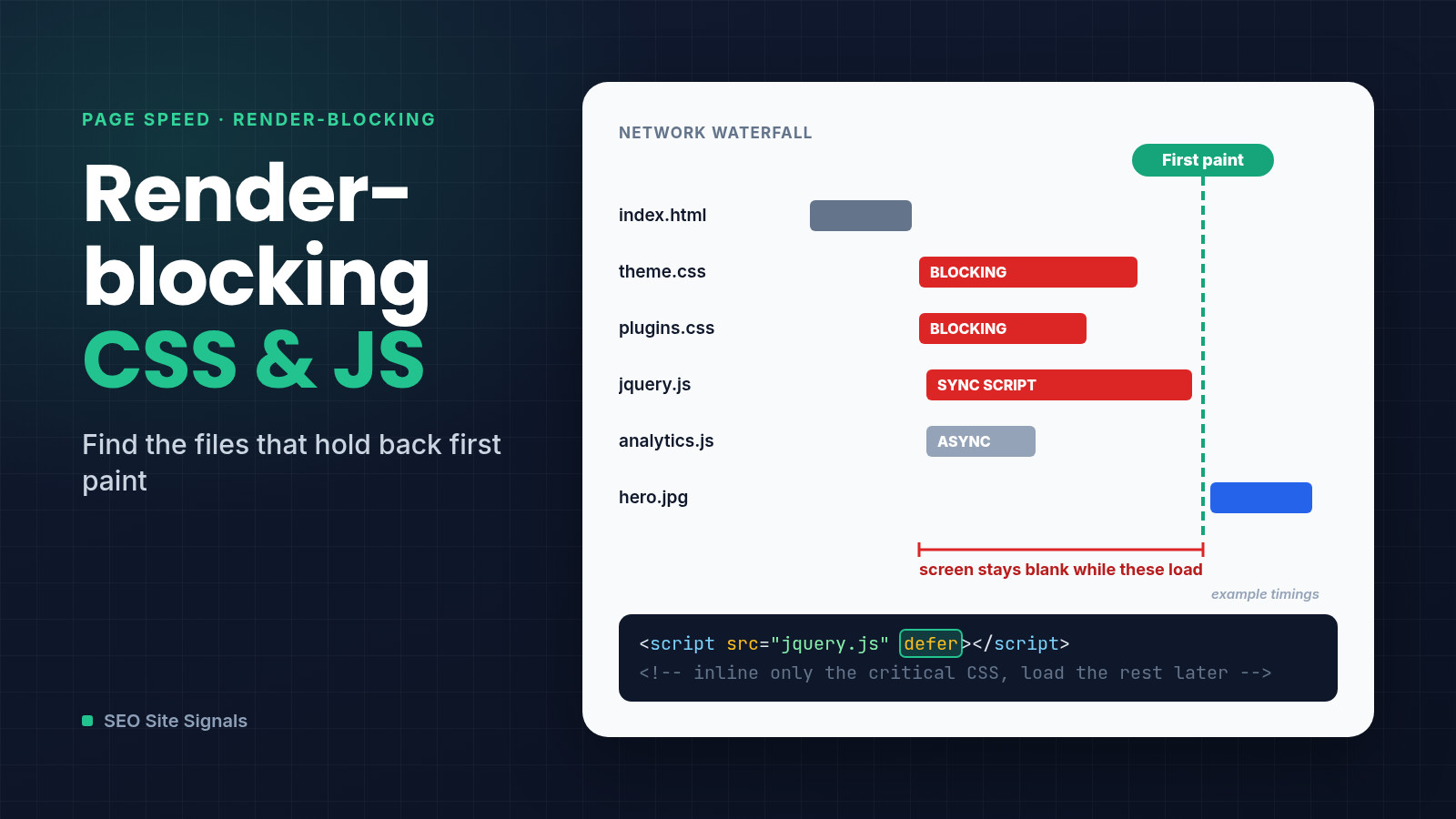
A render-blocking resources test lists the stylesheets and scripts a browser must download and process before it can paint anything on a page. Every file on that list adds to First Contentful Paint and pushes Largest Contentful Paint later. On mobile connections, a few large theme stylesheets and one synchronous tag in the head can be the whole difference between a good and a poor loading score. The fix is usually about which files load, and when, not a bigger server.
This guide explains what makes a file render-blocking, how to find the offenders on a live URL, what is safe to defer, and how to fix it once per template instead of once per page.
What makes a CSS or JavaScript file render-blocking?
A file is render-blocking when the browser has to wait for it before it can show the page. By default that applies to two things in the document head: stylesheets and classic scripts without async, defer, or type="module".
- Stylesheets block rendering because the browser won't paint unstyled content. A
<link rel="stylesheet">with nomediaattribute, or one that matches the current device, blocks until it downloads and parses. - Synchronous scripts block the HTML parser, because the script might change the page. The browser stops reading the HTML until the script downloads and runs.
- Not blocking by default: images,
asyncanddeferscripts, module scripts, and stylesheets whosemediaquery doesn't match (such asmedia="print").
Blocking is correct behaviour, not a bug. It becomes a problem when files that aren't needed for the first screen, such as a chat widget, a slider library, or CSS for a footer form, are loaded as if they were.
How do you find render-blocking resources on a live page?
Find render-blocking resources by testing the live production URL and listing each blocking file with its size and origin. Test the templates that matter separately, because a product page and a blog post often load different plugins.
- Run the URL through the Render Blocking Resources Test. It lists the CSS and JavaScript files the page loads in a blocking way.
- Sort the list by owner: your theme, your plugins or apps, and third parties such as tag managers, chat, reviews, and A/B testing tools.
- In Chrome DevTools, open the Network panel and filter by CSS and JS. Anything that finishes before the first paint marker in the Performance panel is on the critical path.
- Cross-check with PageSpeed Insights. Current Lighthouse versions report this under the "Render-blocking requests" insight; older versions called it "Eliminate render-blocking resources."
Record the template, the file, and the owner for each item. That turns a vague "speed" ticket into three or four tasks someone can actually take.
What is safe to defer, and what is not?
Defer anything that isn't needed to draw or operate the first screen, and keep blocking only what is. The list below is a practical starting point for the files most small-business sites carry.
Analytics and tag manager
Usually safe to defer? Yes, in most setups
How: async, or load after consent. Check that key events still fire.
Chat, reviews, and social widgets
Usually safe to defer? Yes
How: defer, or load on interaction or scroll
Slider or carousel libraries
Usually safe to defer? Only if the slider is below the fold
How: Replace a hero slider with one static image instead
A/B testing and personalisation
Usually safe to defer? Careful
How: Tools that change the first screen may cause flicker if deferred. Scope them to the pages that run tests.
Theme CSS for the first screen
Usually safe to defer? No
How: Inline the small critical part; load the rest without blocking
CSS for forms, footers, and modals
Usually safe to defer? Yes
How: Split into its own file and load it non-blocking
Font stylesheets
Usually safe to defer? Partly
How: Preconnect to the font host and use font-display: swap
How do you fix render-blocking CSS and JavaScript?
Fix render-blocking resources in the template or build step, not by hand on individual pages. The three changes that usually matter most are deferring scripts, splitting critical CSS, and removing files the page doesn't use.
- Add
deferto non-critical scripts.deferkeeps execution order and runs after the HTML is parsed.asyncsuits independent tags such as analytics. - Inline critical CSS. Put the few kilobytes of CSS the first screen needs directly in the head, then load the full stylesheet without blocking. web.dev's critical CSS guide shows the pattern.
- Remove unused CSS and JavaScript. Page builders and plugins often load their assets on every page. Most CMSs and performance plugins can limit assets to the pages that use them.
- Move third-party tags out of the head. If your tag manager injects blocking scripts, change the trigger so they load after the page renders.
- Re-test the same URL. Confirm the file is gone from the blocking list and that FCP improved. Large JavaScript that no longer blocks can still slow interaction. The JavaScript Bootup Time Test shows how long scripts keep the main thread busy.
What goes wrong after you defer everything?
Deferring too aggressively causes its own problems, and they show up as layout shifts, unstyled flashes, or broken features rather than a slower paint. Check each of these before you close the ticket:
- Flash of unstyled content. If the critical CSS misses something above the fold, the page paints and then restyles. Add the missing rules to the inline block.
- Layout shift. Late CSS and swapped fonts can move content after it appears. The CLS deploy checklist covers how to find what moved.
- Broken inline scripts. Inline code that expects jQuery or a library to exist fails when that library is deferred. Defer both, or wrap the inline code in an event listener.
- Missing analytics. Confirm your key events still record after the change. Losing tracking is a bigger problem than a slower paint.
How does this connect to FCP and LCP?
Render-blocking files mainly delay First Contentful Paint, because nothing can paint until they finish. They also add to the "render delay" part of Largest Contentful Paint: the hero image may have downloaded, but it can't appear until the blocking CSS and scripts are done.
If FCP is slow, start here. The FCP guide covers the server and font side of the same problem. If FCP is healthy but LCP is not, the LCP element itself is more likely the problem.
Render-blocking resources FAQ
What are render-blocking resources?
Render-blocking resources are files the browser must download and process before it can display the page. They are usually stylesheets in the head and scripts loaded without async, defer, or type="module". They delay First Contentful Paint and add to the render delay part of Largest Contentful Paint.
Should I use async or defer?
Use defer for scripts that depend on each other or on the page's HTML, because defer keeps their order and runs them after parsing. Use async for independent scripts such as analytics, which can run whenever they arrive. Both stop the script from blocking the HTML parser.
Is all CSS render-blocking?
By default, stylesheets linked in the head are render-blocking when their media query matches the device. A stylesheet with a non-matching media attribute, such as print, doesn't block rendering. The usual fix is to inline the small amount of CSS needed for the first screen and load the rest without blocking.
Can I just combine all my CSS into one file?
Combining files reduces the number of requests, but one large stylesheet still blocks rendering until it has fully downloaded. It is better to separate the critical CSS for the first screen from everything else, and to stop loading CSS for features a page doesn't use.
Why do render-blocking files come back after I fix them?
New plugins, apps, theme updates, and tags added through a tag manager often load in the head by default. Re-test your main templates after each of those changes. A render-blocking regression usually arrives with a "small" addition rather than a redesign.
Get the file list for one template: run your home page through the Render Blocking Resources Test, then tag each file as theme, plugin, or third party before anyone starts deferring.
Related guides: if you inline critical CSS, find inline CSS and style attributes to keep it to a small head block.
SEO Site Signals is the free-tool and audit product from PositionMySite, a Toronto and Tampa software company that has been building for the web since 2009. The render-blocking test, the other 80-plus checks on this site, and the paid monitoring dashboard are built by our own engineers. We keep the individual checks free so teams can see what is slowing a page before they commit to an enterprise platform.
Last updated: September 25, 2026 | Author: David Dayan | Sources: Chrome for Developers, "Render-blocking requests"; Chrome for Developers, "Eliminate render-blocking resources"; web.dev, "Extract critical CSS"; web.dev, "Defer non-critical CSS"; web.dev, "Optimize Largest Contentful Paint".