
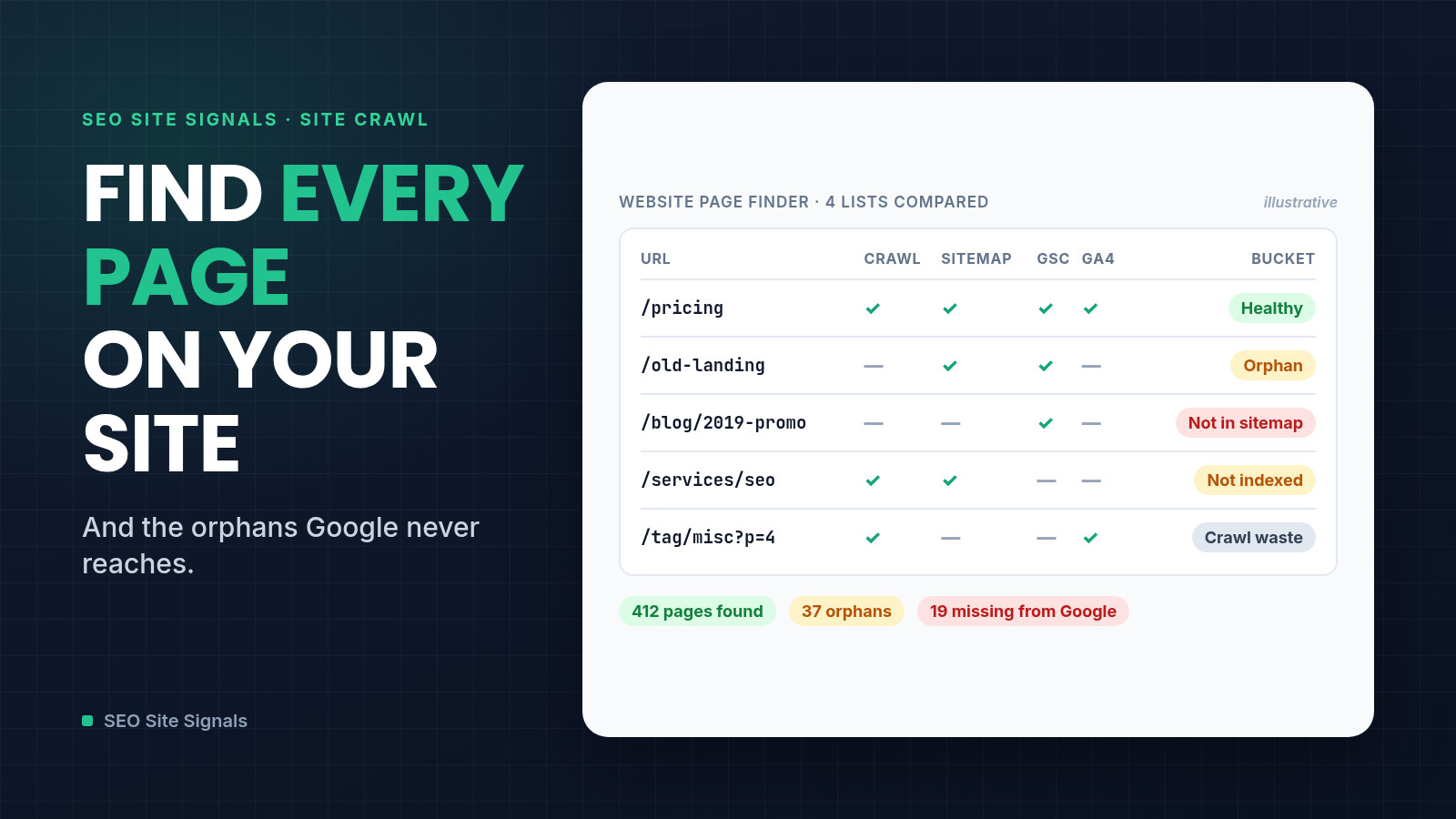
To find every page on a website, you need more than one list. No single source is complete. Your sitemap lists what you meant to publish, a link crawl shows what visitors can reach, your CMS holds everything that was ever created, and Search Console shows what Google already knows. Pull all four, compare them, and the URLs that appear in some lists but not others are where the problems are: orphan pages, stale sitemap entries, forgotten drafts and old URLs Google still requests.
Most guides to finding all pages on a website are written for someone pulling URLs off another company's site. This one is for site owners. The goal is to check all website pages you own, then decide for each mismatch what Google should do with it.
Why one list is never enough
Google finds pages in two main ways: by following links and by reading sitemaps. Google's sitemaps overview says that "if your site's pages are properly linked, Google can usually discover most of your site," and adds that on large sites it is harder to make sure every page is linked. A sitemap fills that gap, but Google calls it "merely a hint." It does not guarantee that a URL gets crawled or indexed.
Each source also has its own blind spot:
- The
site:search operator is quick, but Google says its results are "not always exhaustive" and that bigger sites "shouldn't expect to see all their URLs." Use it as a spot check. Our guide to Google search operators explains whysite:counts move around. - A sitemap lists only what your CMS or plugin decided to include, and it can keep listing pages you deleted months ago.
- A link crawl only finds pages that are linked from somewhere. That is exactly why it misses orphan pages.
- Search Console shows example URLs, not complete lists. The Page indexing report caps its example tables at 1,000 rows.
A website page finder that relies on one of these will always have gaps. Comparing them closes the gaps.
The four lists to pull
1. Your XML sitemap
Find it from the Sitemap: line in /robots.txt. Google notes that this line can go anywhere in the file. If you have a sitemap index, open each child sitemap and export every <loc> URL. One file can hold up to 50,000 URLs or 50MB uncompressed.
Quick check: the sitemap checker confirms the format, URL count and lastmod dates, and whether robots.txt declares the sitemap. The robots.txt checker shows the syntax and any blocked paths.
2. A link crawl from your homepage
Run a desktop crawler, or a script that follows internal links, starting from the homepage. Export every HTML URL that returns 200. This list is what Google can reach by following links alone.
3. Your CMS or database export
Export all pages, posts, products and landing pages from WordPress, Shopify, Webflow or whatever you use, and include drafts, private and scheduled items. Build each item's public URL from its slug.
4. Search Console's Page indexing report
Open Indexing, then Pages. Use the filter at the top to switch between "All known pages" and "All submitted pages." The submitted view covers only URLs in your sitemaps. The known view adds every URL Google found by any route. Export the examples for each reason, including "Discovered – currently not indexed" (Google knows the URL but has not crawled it yet) and "Crawled – currently not indexed" (crawled but not added to the index for now).
Compare the lists in one sheet
Put all four lists in a spreadsheet with one column per source. Before comparing, normalize the URLs: one protocol (https), one host (with or without www, whichever is canonical), a consistent trailing slash, lowercase where your server treats case as the same, and tracking parameters stripped. Without this step the same page shows up as three different rows.
Then add a column for each source with a simple yes or no (a COUNTIF or XLOOKUP against each list works). Every URL ends up with a pattern such as "sitemap yes, crawl no, CMS yes, Google yes." Those patterns sort into five buckets.
The five buckets, and the fix for each
In every list: healthy
What it means: the page is published, linked, in the sitemap and known to Google. Nothing is missing on the discovery side.
Fix: none. If Google lists it as not indexed, that is a quality or duplication question, which our crawling and indexing guide covers.
Sitemap only, not found by the crawl: orphan or stale
What it means: no internal link points to it. Either it is a real page you forgot to link (an orphan page), or a dead page your sitemap still lists.
Fix: if the page matters, link to it from at least one relevant page. Google's link guidance says "every page you care about should have a link from at least one other page on your site." If it does not matter, remove it from the sitemap and redirect it to its closest replacement.
Crawl only, missing from the sitemap
What it means: the page is linked and live, but your sitemap leaves it out. This is common with tag pages, custom post types and pages built outside the main CMS.
Fix: if it should rank, add it to the sitemap. If it should not (thin tag or filter pages), consider noindex or removing the internal links that create it.
CMS only: drafts, staging or forgotten pages
What it means: the item exists in your system but is neither linked nor in the sitemap. Usually this is an old draft, a test page, a campaign landing page from two years ago, or a staging copy.
Fix: publish and link it if it is still useful, add noindex if it has to stay live for one audience (such as a paid-ads landing page), or delete it. Check that staging copies sit behind a login, not just a robots.txt rule.
Google only: URLs Google knows that you don't list
What it means: these show up under "All known pages" but not under "All submitted pages," and your crawl and CMS don't have them. Typical sources are old URLs from a redesign, parameter variations, and pages linked from other sites.
Fix: 301-redirect old URLs that have a clear replacement. Return 410 or 404 for URLs that are truly gone. Make parameter URLs point to the clean version with a canonical tag, and stop linking to them internally.
Work through the buckets from top to bottom by value. Orphaned pages that earn money or leads come first, then sitemap cleanup, then old URLs.
Why it matters to Google
Discovery runs on links and sitemaps. A page that appears in neither is a page Google may never see. A page that appears only in the sitemap gets a weaker signal than one that is also linked, because internal links tell Google both that a page exists and what it is about. Stale sitemap entries cause the opposite problem: they send Google to dead or redirected URLs, and Search Console then reports them as errors you have to sort through.
A clean inventory doesn't make pages rank by itself. What it does is make sure every page you care about can be found, and that Google isn't spending time on pages you've abandoned. If you want a wider look at a site after the inventory, our post on reviewing your website's SEO for free picks up from there.
How often to repeat it
Do the full four-list comparison after any redesign, migration, CMS change or large content cleanup. For a small site that is otherwise stable, once or twice a year is enough. Between full passes, look at the Page indexing report each month with the "All submitted pages" filter on. A jump in "Discovered – currently not indexed" or a new spike in 404s is usually the first sign that the lists have drifted apart again.
Keep the spreadsheet. Next time you only need to refresh the four columns and look at rows whose pattern changed.
FAQ
How do I find all pages on my website?
Pull four lists: your XML sitemap, a link crawl from your homepage, a full export from your CMS, and the Page indexing report in Search Console. Normalize the URLs, put them side by side in one sheet, and look at which pages appear in some lists but not others.
What is an orphan page?
An orphan page is a live page with no internal links pointing to it. Visitors can't click their way to it, and Google can only find it through a sitemap or an external link. Link to it from a relevant page, or remove and redirect it if it is no longer needed.
Does a site: search show every page Google has indexed?
No. Google says site: results are not always exhaustive and that bigger sites should not expect to see all their URLs. Use it as a spot check and rely on Search Console for your own site.
How do I see pages Google knows about that aren't in my sitemap?
In Search Console's Page indexing report, compare the "All known pages" filter with "All submitted pages." URLs that appear only under all known pages were found some other way, usually through links or old URLs. Note that example lists are limited to 1,000 rows.
Should every page be in my sitemap?
Every page you want in search results should be. Leave out redirected URLs, noindexed pages, duplicates and parameter variations. A sitemap is a hint to Google, so keep it to canonical URLs that return 200.
Try the free SEO tools: open the full list of SEO Site Signals tools to check your sitemap, robots.txt and other page-level signals one URL at a time, with no signup.
Related guides: once you have the full page list, find the thin pages on it and decide which to improve, merge or remove.
SEO Site Signals is the free tools product from PositionMySite, a North American software company in Toronto and Tampa. Since 2009 our in-house engineers have built the checks on this site, from sitemaps to robots.txt rules, so small teams can see what Google sees before they pay for another platform.
Last updated: October 20, 2026 | Author: David Dayan | Sources: Google Search Central, Build and submit a sitemap; Google Search Central, Sitemaps overview; Google Search Central, Link best practices; Google Search Central, site: search operator; Search Console Help, Page indexing report; Screaming Frog, How to find orphan pages.