
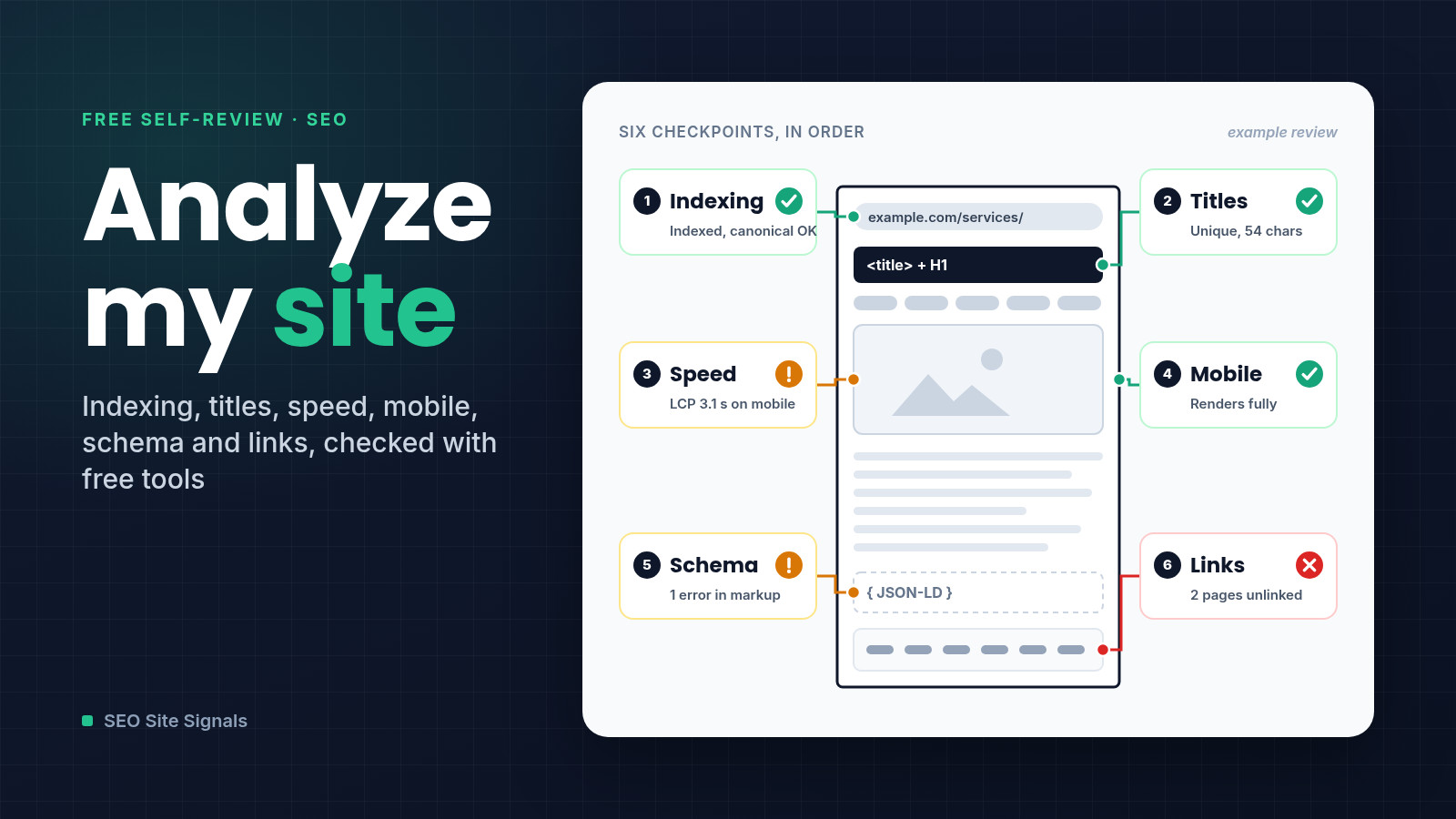
To analyze your own website for SEO for free, check six things in this order: whether Google has indexed your important pages, how your titles show up in results, how fast pages load for real visitors, whether the mobile version renders completely, whether your structured data is valid, and whether internal links reach the pages that earn money. Google Search Console, PageSpeed Insights, the Rich Results Test and a site: search cover all six. Budget about an hour for a site under 100 pages.
You can get a solid website analysis free of charge. The order matters more than the tool: a perfect speed result means nothing on a page Google never indexed. Whether you searched "analyze my site," "analyze my website" or "seo analyse my site," the real questions are the same. Is Google seeing my pages, is anything broken, and what do I fix first?
What should you look at when you analyze your own website?
When you analyze your own website, look at six checkpoints, each with a free Google tool and a clear sign of failure. Work top to bottom, because a problem higher on the list hides or cancels the ones below it.
1. Indexing
Tool: Page indexing report, URL Inspection
Red flag: a key URL not indexed
2. Titles
Tool: Performance report, site: search
Red flag: impressions with almost no clicks
3. Speed
Tool: Core Web Vitals report, PageSpeed Insights
Red flag: Poor URL groups on mobile
4. Mobile
Tool: Lighthouse, Rich Results Test
Red flag: content missing from the rendered HTML
5. Schema
Tool: Rich Results Test
Red flag: errors on types you rely on
6. Links
Tool: Search Console Links report
Red flag: key pages missing from Top linked pages
How do I analyze my website for free, in order?
Pick your test URLs before you open any tool: the homepage, your top three pages by clicks in Search Console, and one URL from each template (service, product, category, article, contact). One broken template breaks every page built on it, so one URL per template catches most site-wide problems.
Then work the checkpoints in the order below, about ten minutes each. If Search Console is not set up yet, verify your domain first. It is free, and it is the only place Google reports what it actually indexed.
Can Google find and index your important pages?
Google can only rank pages it has indexed, so start here. In Search Console, confirm Manual actions and Security issues both say no issues detected. Then open Pages and read the reasons under "Why pages aren't indexed."
Redirects, parameter URLs and deliberate noindex pages belong there. Worry when an important URL appears under "Excluded by 'noindex' tag," "Blocked by robots.txt," "Duplicate without user-selected canonical" or "Crawled - currently not indexed."
Next, paste each test URL into URL Inspection. You want "URL is on Google," with a Google-selected canonical that matches yours. Then search site:yourdomain.com. Google says it won't show every indexed URL, so ignore the count and look for what shouldn't be there: staging subdomains, old http:// pages, internal search results. The crawling and indexing checklist covers each fix, and the search operators guide has more site: searches.
Do your titles and snippets earn the click?
Your title link is the first thing a searcher reads. In the Performance report, open Pages for the last three months and sort by impressions. A page with many impressions but a click-through rate well below similar pages usually has a title or snippet problem, or it is showing for the wrong searches.
Click the page and open Queries to see what people searched. Then read the title links Google shows in your site: results. Google's title link documentation says it may replace titles that are boilerplate, very long or off-topic; "Home | Brand" on every page is the classic failure. To rework a single weak page, follow our guide to improving a page that already exists.
How fast is the site for real visitors?
Start with field data, because that is what real visitors experience. The Search Console Core Web Vitals report groups URLs using Chrome user data; a page is good at the 75th percentile when LCP is 2.5 seconds or less, INP 200 milliseconds or less, and CLS 0.1 or less.
Small sites often see "not enough data." Then run your test URLs through PageSpeed Insights on mobile. The top section shows field data when Google has it; the lower section is a Lighthouse lab run that varies between runs, so read its diagnostics (the LCP element, render-blocking files) instead of chasing one number. Google's page experience guidance is also clear that good Core Web Vitals won't beat a more relevant page. Our Core Web Vitals guide and what to fix first on a slow site go deeper.
Does the mobile version show everything Google needs?
Google indexes the mobile version of your pages (mobile-first indexing), so content that only exists on desktop may as well not exist. Google retired the Mobile-Friendly Test and the Mobile Usability report on December 1, 2023, and pointed site owners to Lighthouse instead.
Use the Lighthouse results in PageSpeed Insights for viewport, tap targets and font sizes. Then run a test URL in the Rich Results Test and click View tested page: it renders the page as Googlebot smartphone and shows the rendered HTML. Search it for your main heading, key paragraphs and navigation links. Anything that needs a click or a failed script to appear may be invisible to Google.
Is your structured data valid?
The same Rich Results Test lists each structured data item it detects, with errors and warnings. Fix errors on types you rely on, such as Product, LocalBusiness, Article or Breadcrumb. Warnings usually mean an optional field is missing.
Valid markup makes a page eligible for a rich result, not guaranteed one. Since August 2023, Google shows FAQ rich results only for well-known government and health sites and dropped HowTo results, so a missing FAQ result on a small business site is not a bug.
Do internal links reach the pages that matter?
Google discovers and weighs pages through links, and its documentation says it can reliably follow only <a> elements with an href. Menus built from click handlers or buttons may hide whole sections. In Search Console, open Links and read Top linked pages under internal links.
Your main service or product pages should sit near the top. If your privacy policy outranks your best service page, fix the navigation and add contextual links with descriptive anchor text. Finding every broken link on the site takes a full crawl; a per-URL check sees only that page's links.
Which free tools should I use to analyze my website SEO?
Pair Google's tools, which show how Google sees the site, with a per-URL report that shows what is technically wrong on each page. Neither replaces the other.
Google Search Console
Best for: indexing, queries, field Core Web Vitals, links
Misses: code-level problems on a page; data lags a few days
PageSpeed Insights and Lighthouse
Best for: one URL's speed and mobile diagnostics
Misses: a site-wide view
Rich Results Test
Best for: structured data and the page as Googlebot renders it
Misses: everything else
site: search
Best for: spotting URLs that shouldn't be in Google
Misses: accurate index counts
SEO Site Signals Instant Analysis
Best for: 80+ checks on one URL (technical SEO, Core Web Vitals, indexability, AI readiness), no signup
Misses: field data, rankings, full-site crawls
Once Search Console has shown you which URLs matter, run each test URL through Instant Analysis on the SEO Site Signals homepage. It flags what Google's reports don't spell out: a stray noindex, a missing canonical or viewport tag, HTTPS and HSTS gaps, or a robots.txt rule blocking AI crawlers. Treat any site analyzer, free or paid, as a starting list, not a verdict. Our guide to reading the report covers what to fix first, and the free tools library re-tests one signal after a fix.
What do you do with what you find?
Sort findings by how much they block search traffic, not by how many tools flagged them. Write one line per issue: URL, evidence, fix, owner.
Fix today
Examples: noindex or robots.txt blocks on money pages, wrong canonicals, a manual action or security issue, HTTPS errors
Fix this month
Examples: weak titles on high-impression pages, Poor Core Web Vitals groups on mobile, structured data errors, under-linked service pages
Backlog
Examples: lab-only speed warnings on low-traffic pages, optional schema fields, cosmetic warnings
Re-run your test URLs after every deploy that touches templates. For deciding what to work on after the blockers are gone, see SEO strategy for a small team.
FAQ: analyzing your own site
Can I analyze my site without signing up for anything?
Yes. A site: search, PageSpeed Insights, the Rich Results Test and Instant Analysis on tools.positionmysite.com all work without signup. Search Console needs a free Google account and proof that you own the site, which is worth it: it is the only source of Google's own indexing data.
How often should I analyse my website?
Do a full pass every quarter and after any redesign, migration or platform change. In between, glance at the Page indexing and Core Web Vitals reports weekly and act on Search Console email alerts the day they arrive. Template changes cause most sudden problems.
Does a free tool show my Google rankings?
Search Console's Performance report shows average position by query for free. SEO Site Signals has no free rank checker; keyword tracking is part of the paid monitoring, which has a 3-day free trial. Our guide to checking where you rank explains how to read average position.
Start with your homepage and one URL from each template: paste them into Instant Analysis on tools.positionmysite.com, no signup needed, and take the failed checks into the six-step order above.
SEO Site Signals is built by PositionMySite, a North American software company in Toronto and Tampa. Since 2009 our in-house team has engineered the checkers and the monitoring dashboard mentioned here, and we keep the per-URL checks free so a small business can see what is failing before it pays for any SEO platform.
Last updated: October 8, 2026 | Author: Bogdan Blokhin | Sources: Google Search Central, SEO Starter Guide; Search Console Help, Page indexing report; Search Console Help, URL Inspection tool; Search Console Help, Performance report; Google Search Central, site: search operator; Google Search Central, Title links; Search Console Help, Core Web Vitals report; Google Search Central, Understanding Core Web Vitals; Google Search Central, Page experience; About PageSpeed Insights; Chrome for Developers, Lighthouse; Google Search Central, Mobile-first indexing; Google Search Central Blog, Page experience and the Mobile-Friendly Test retirement; Search Console Help, Rich Results Test; Google Search Central Blog, HowTo and FAQ changes; Google Search Central, Crawlable links.