
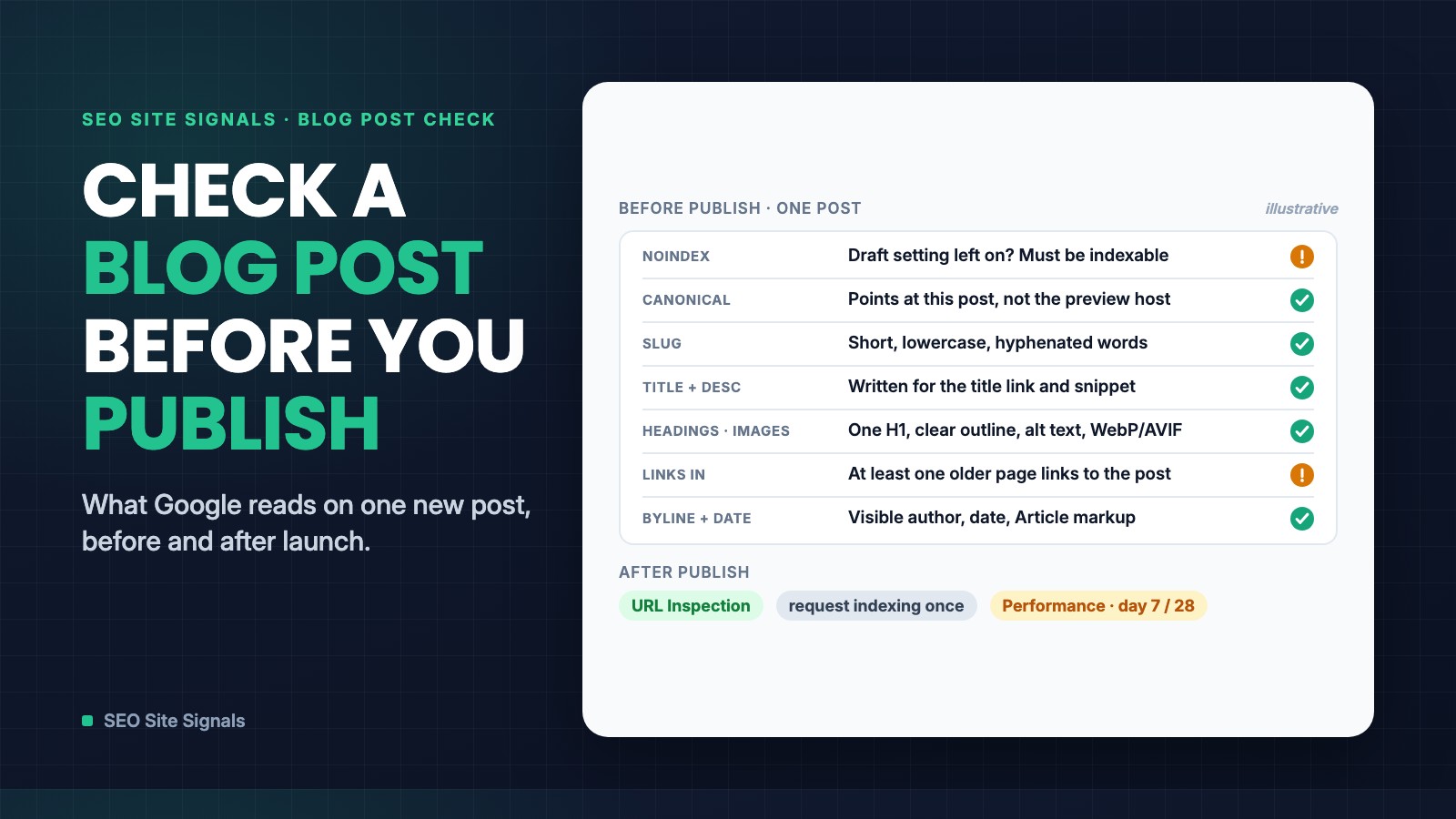
To check a blog post's SEO before you publish it, test the things Google actually reads on that one URL: is the page allowed into the index (no leftover noindex, a canonical that points at itself), does it have a clear title, description and heading outline, a readable slug, images with alt text, at least one internal link pointing in, and a visible byline and date. After it goes live, inspect the URL in Search Console, request indexing once, and watch the page in the Performance report. That whole pass takes about 15 minutes with free tools.
Most "blog post SEO checker" lists run to 30 items about keyword density. This one is shorter on purpose. Every step below maps to something Google's own documentation says it uses, with the date that page was last updated, and every step links to a free check you can run on the draft or preview URL.
What does Google actually read on a blog post?
Google doesn't grade blog posts against a checklist. It crawls the URL, decides whether it may and should index it, works out what the page is about, and then picks a title link and snippet for results. For a single new post, that comes down to a few signals:
Whether it may index the page
A noindex rule keeps the page out of results. Google's noindex documentation (last updated December 10, 2025) also notes that Google only sees the rule if robots.txt doesn't block the page.
Which URL is the real one
A rel="canonical" tag is a strong hint about which duplicate to show. Google explains this in how to specify a canonical URL (last updated July 10, 2026).
What the post is about
The <title> element, the main heading, the body text, image alt text and the anchor text of links pointing in all tell Google the topic. Google uses several of these when it writes the title link (title links, last updated December 10, 2025).
How it can find the post
Google's link best practices (last updated December 10, 2025) say every page you care about should have a link from at least one other page on your site.
Everything below checks one of those signals on one post. It isn't a site-wide audit, and it doesn't care which CMS you publish from.
Part 1: What to check before you hit publish
If your CMS has a preview or staging URL, run the checks there first, then run them again on the live URL. Drafts are where most launch mistakes come from.
1. Is the post still set to noindex from the draft?
Many publishing setups add noindex to drafts, previews or staging hosts, and sometimes that setting goes live with the post. Run the URL through the noindex tag checker. It reads both the robots meta tag and the X-Robots-Tag header. A live post should come back indexable. If you'd like to see how one stray noindex shows up in Search Console, see our noindex checker guide.
2. Does the canonical point at this post?
Check the canonical before you publish and again after. A post copied from a template can carry the template's canonical, and a staged post can point at the preview host. The canonical tag checker shows the declared URL. On a normal post it should be the post's own final URL: same protocol, same host, no preview parameters.
3. Is the slug readable?
Google's URL structure best practices were updated on October 21, 2026, and the page now explains more clearly why Google recommends hyphens rather than underscores between words. Use a short, lowercase, hyphenated slug made of real words, not an auto-generated ID or a date string. The SEO-friendly URL checker flags length, case, underscores, parameters and depth. Fix the slug before launch, because changing it later means a redirect.
4. Are the title and meta description written for the result?
Google may rewrite either one, but it starts from what you give it. The title-link guidance asks for a descriptive, concise <title> on every page, without boilerplate or keyword stuffing. Google's guide to meta descriptions (last updated April 20, 2026) says Google sometimes uses the meta description when it describes the page more accurately than text taken from the body. Check length and how the result will be cut off with the meta title checker and the meta description checker. The title tag guide goes deeper on titles.
5. Does the heading outline match the post?
Use one main heading that says what the post answers, then subheadings that follow the order a reader needs. The heading tags checker lists H1 to H6, so you'll spot a missing H1, a duplicate H1 that came from the theme, or skipped levels. To check whether your main phrase shows up in the title, headings and body, follow how to check a page for keywords rather than counting words.
6. Do the images have alt text and a modern format?
Google's image SEO best practices (last updated March 2, 2026) call alt text the most important attribute for image metadata, and list the formats Google Search supports, including WebP and AVIF. Run the image alt text checker to find images without alt text, and the modern image format test to catch heavy JPG or PNG files uploaded straight from a camera or design tool.
7. Does at least one page link to the new post?
A new post that only appears on the blog index is easy to miss. Before you publish, pick one or two older posts or service pages on the same topic and add a contextual link to the new URL with descriptive anchor text. On the new post, the descriptive link text checker flags vague anchors like "click here." For finding pages with no links pointing in, see how to find orphan pages. Your sitemap should also list the URL once it's live, but that's a one-line check, not a project.
8. Are the byline, date and Article markup in place?
Google's byline date guidance (last updated December 10, 2025) asks for a prominent, visible date labeled "Published" or "Last updated." Show the author's name too; our author bylines guide covers author pages. Google's Article structured data page (last updated September 8, 2026) says there are no required properties, and recommends properties such as headline, image, author and dates. Google says the markup can help it show better title text, images and date information. It can't force any of that to appear. Confirm it parses with the schema markup test.
Part 2: What to check after you publish
Publishing doesn't mean the post is indexed. Run these three checks on the live URL.
Same day: run the live URL again
Repeat the noindex, canonical and title checks on the public URL. Caching, a CDN or a theme setting can serve something different from the preview.
Same day: inspect and request indexing once
In Search Console, run URL Inspection, test the live URL, then request indexing. Google's recrawl guidance (last updated December 10, 2025) says there is a quota and that requesting the same URL several times won't get it crawled faster. Our URL Inspection guide explains each status.
Day 7 and day 28: filter Performance to the page
In the Performance report, add a page filter for the post's URL and look at which queries it shows for. If impressions come from queries you didn't write for, adjust the title and intro. If an older page shows for the same queries, link the two clearly or merge them, rather than letting them compete.
Is there a free blog SEO checker that does all of this?
No single test covers every step, and you should be wary of any blog SEO checker or SEO post checker that hands you one number and calls the post ready. Each check above answers a yes-or-no question about something Google reads. To run many on-page and technical checks on a post URL in one pass, use Instant Analysis or the all-in-one SEO test, then fix whatever fails. The Search Console steps have to be done in your own account, because only the site owner can request indexing.
Frequently asked questions
How do I check a blog post's SEO for free?
Run the draft or live URL through free tests for noindex, canonical, title, meta description, headings, URL, image alt text and schema, then use URL Inspection in Google Search Console after you publish. Each check takes a minute or two.
Should I check the post before or after publishing?
Both. Check the preview before launch so you can fix the slug, title and noindex settings cheaply, then check the live URL again, because hosting, caching and theme settings can change what Google receives.
Does Article structured data help a blog post rank?
Google describes Article markup as a way to help it understand the page and show better title, image and date information. It makes the page eligible for some features, but it isn't a ranking guarantee, and Google lists no required properties.
How long does Google take to index a new blog post?
It varies from days to weeks. Requesting indexing once in URL Inspection is enough; Google says repeat requests for the same URL don't speed up crawling. Internal links from pages Google already crawls help it find the post.
Do I need to add every new post to my sitemap by hand?
Usually not. Most publishing systems update the sitemap automatically. Just confirm the new URL appears there after launch.
Run the checks on your next post
Before your next post goes out, open the noindex checker and the canonical tag checker on the preview URL, then run Instant Analysis or open the full list of free checks to cover titles, headings, images and markup in one pass.
SEO Site Signals is built by PositionMySite, a North American software company in Toronto and Tampa that has been shipping web software since 2009. Our in-house team designs the free on-page, speed, security and AI-crawler checks on this site, and the monitoring dashboard, so small and mid-size teams can see what a page actually says to Google before they pay for an enterprise suite.
Last updated: November 10, 2026 | Author: David Dayan | Sources: Google Search Central, Block Search indexing with noindex; Google Search Central, How to specify a canonical with rel="canonical"; Google Search Central, URL structure best practices; Google Search Central, Influencing your title links; Google Search Central, How to write meta descriptions; Google Search Central, Image SEO best practices; Google Search Central, Link best practices; Google Search Central, Byline dates; Google Search Central, Article structured data; Google Search Central, Ask Google to recrawl your URLs.